diff options
| author | Malkierian <malkierian@gmail.com> | 2024-08-30 11:46:04 -0700 |
|---|---|---|
| committer | GitHub <noreply@github.com> | 2024-08-30 14:46:04 -0400 |
| commit | 13035d72a4c8a21b760ce1e72bf7d24bb4f3ec3e (patch) | |
| tree | e11524b4b976f32bb2a29d4b05d5c97ee00ee332 | |
| parent | 136a928883ac4ef3efc5bba48b48a047fc1a1de0 (diff) | |
Change recommended build tools from 142 to 143, minimum VS to 2022. (#762)
| -rw-r--r-- | docs/BUILDING.md | 17 |
1 files changed, 5 insertions, 12 deletions
diff --git a/docs/BUILDING.md b/docs/BUILDING.md index 24cd73f45..8feb79ec3 100644 --- a/docs/BUILDING.md +++ b/docs/BUILDING.md @@ -6,7 +6,7 @@ Requires: * At least 8GB of RAM (machines with 4GB have seen complier failures) * Visual Studio 2022 Community Edition with the C++ feature set * One of the Windows SDKs that comes with Visual Studio, for example the current Windows 10 version 10.0.19041.0 - * The `MSVC v142 - VS 2019 C++ build tools` component of Visual Studio + * The `MSVC v143 - VS 2022 C++ build tools` component of Visual Studio * Python 3 (can be installed manually or as part of Visual Studio) * Git (can be installed manually or as part of Visual Studio) * Cmake (can be installed via chocolatey or manually) @@ -14,12 +14,9 @@ Requires: During installation, check the "Desktop development with C++" feature set: 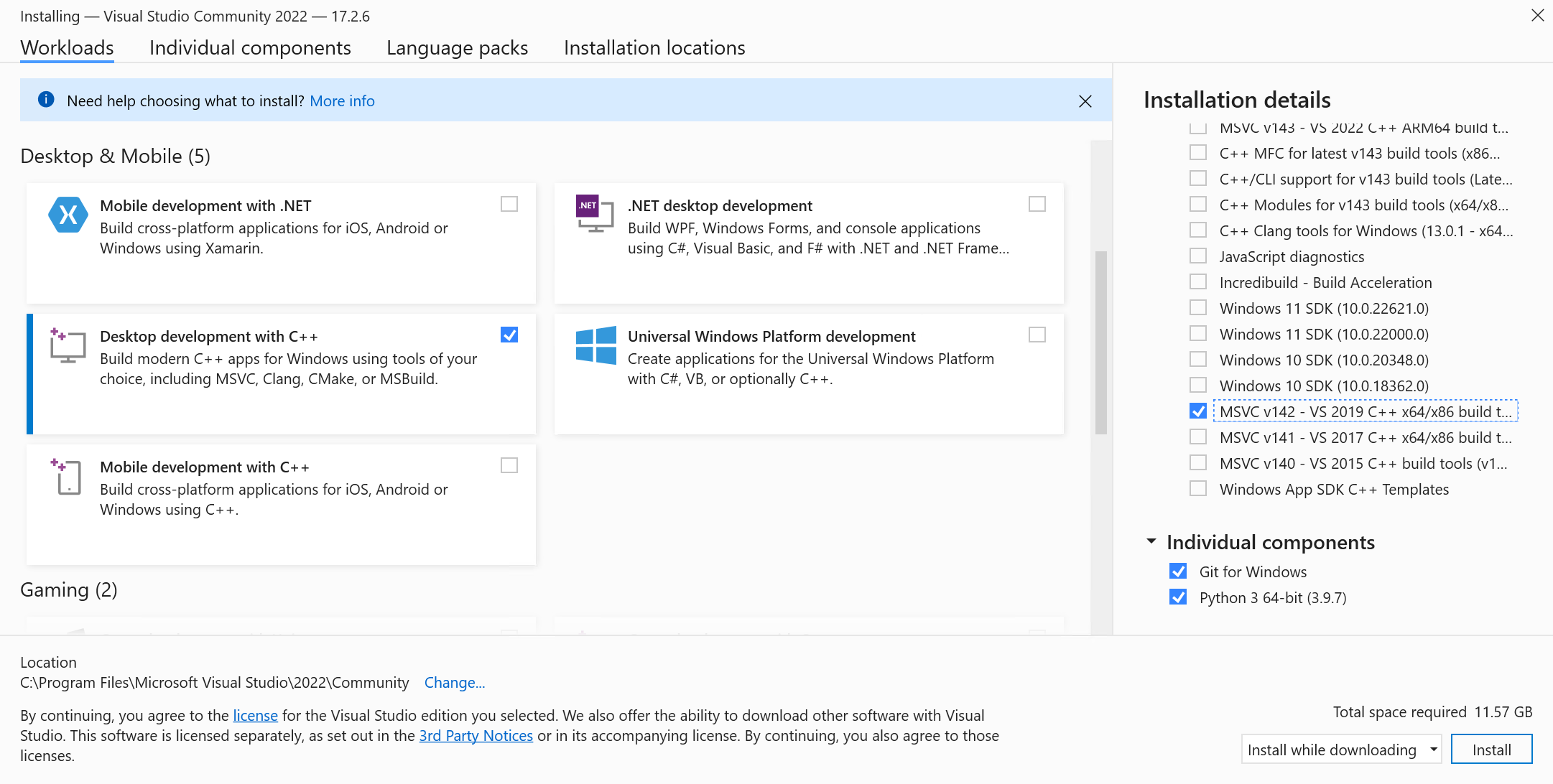 -Doing so should also check one of the Windows SDKs by default. Then, in the installation details in the right-hand column, make sure you also check the v142 toolset. +Doing so should also check one of the Windows SDKs by default. Then, in the installation details in the right-hand column, make sure you also check the v143 toolset. This is often done by default. -You can also find the v142 toolset by searching through the individual components tab: - -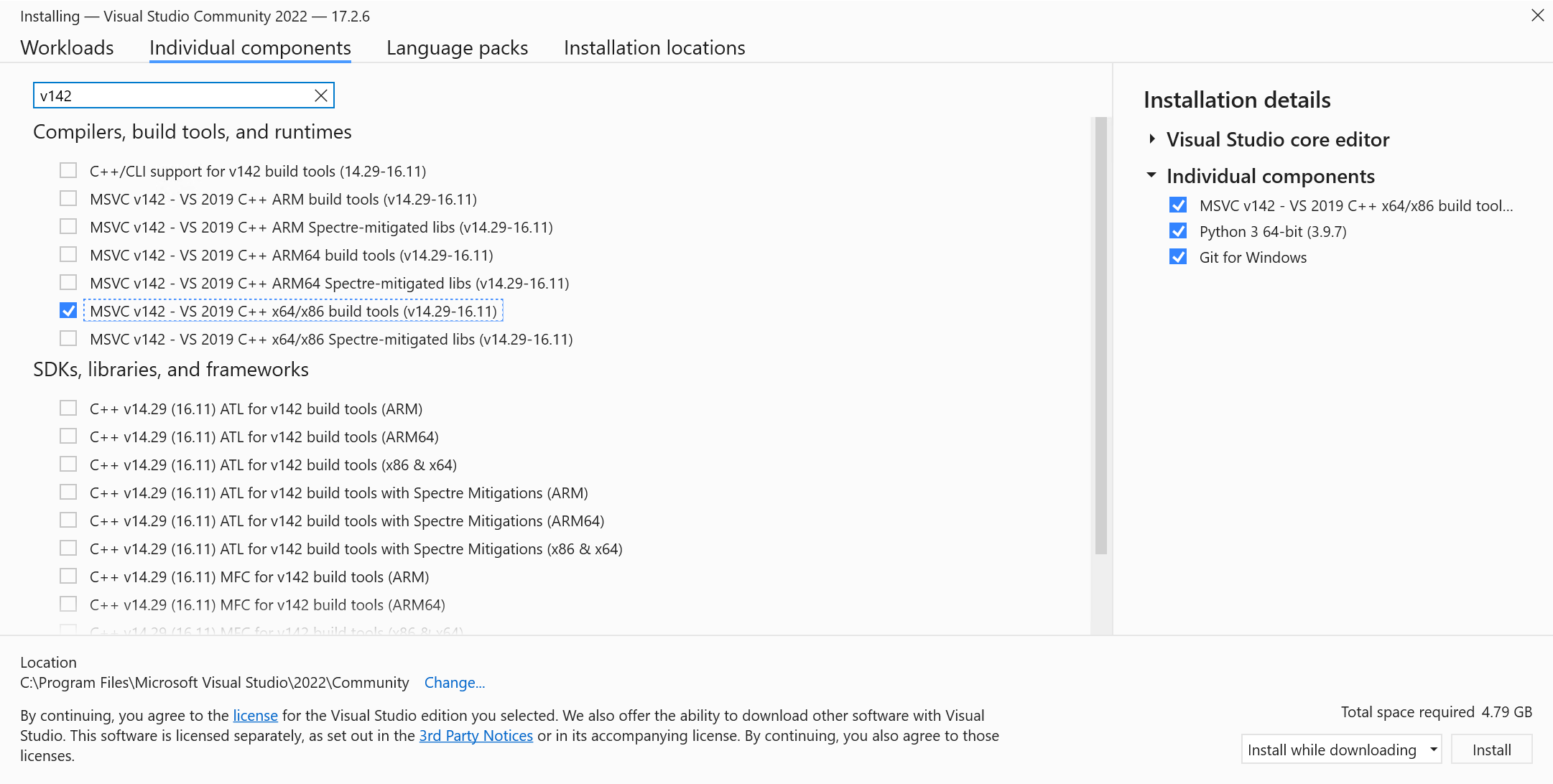 -While you're there, you can also install Python 3 and Git if needed. +It is recommended that you install Python and Git standalone, the install process in VS Installer has given some issues in the past. 1. Clone the 2 Ship 2 Harkinian repository @@ -33,9 +30,7 @@ _Note: Instructions assume using powershell_ cd 2ship2harkinian # Setup cmake project -& 'C:\Program Files\CMake\bin\cmake' -S . -B "build/x64" -G "Visual Studio 17 2022" -T v142 -A x64 # -DCMAKE_BUILD_TYPE:STRING=Release (if you're packaging) -# or for VS2019 -& 'C:\Program Files\CMake\bin\cmake' -S . -B "build/x64" -G "Visual Studio 16 2019" -T v142 -A x64 +& 'C:\Program Files\CMake\bin\cmake' -S . -B "build/x64" -G "Visual Studio 17 2022" -T v143 -A x64 # -DCMAKE_BUILD_TYPE:STRING=Release (if you're packaging) # Extract assets & generate OTR (run this anytime you need to regenerate OTR) & 'C:\Program Files\CMake\bin\cmake.exe' --build .\build\x64 --target ExtractAssets # --config Release (if you're packaging) # Compile project @@ -60,9 +55,7 @@ With the cmake build system you have two options for working on the project: To develop using Visual Studio you only need to use cmake to generate the solution file: ```powershell # Generates 2s2h.sln at `build/x64` for Visual Studio 2022 -& 'C:\Program Files\CMake\bin\cmake' -S . -B "build/x64" -G "Visual Studio 17 2022" -T v142 -A x64 -# or for Visual Studio 2019 -& 'C:\Program Files\CMake\bin\cmake' -S . -B "build/x64" -G "Visual Studio 16 2019" -T v142 -A x64 +& 'C:\Program Files\CMake\bin\cmake' -S . -B "build/x64" -G "Visual Studio 17 2022" -T v143 -A x64 ``` #### Visual Studio Code or another editor |